Documentation
User documentation
Day-to-day use of CatalogueCanvas for an authenticated user (admin session) and for public portfolio viewers.
For deployment and configuration, see Admin documentation.
Roles you'll encounter
- Admin — can upload, edit, organise, configure, and publish.
- Reader (multi-user mode) — can view the whole catalogue and download files, but cannot modify anything; admin-only menus and controls are hidden.
- Public viewer — no login; can only view portfolios marked Public via their link.
Signing in
If the instance runs in multi-user mode, sign in with your username and password; otherwise enter the admin password. Your session is held in a secure cookie, and your username is shown next to the Log out button.
Warning
After 5 failed attempts within 5 minutes, login is temporarily blocked.
What Readers can do
Readers get a download-only view of the catalogue. They can download individual files, a single item as a ZIP, and a multi-select bulk ZIP — without gaining edit access. Editing, tagging, favouriting, and LLM actions remain admin-only.
Adding work (upload)
- Click the upload button in the top bar.
- Select or drag-and-drop one or more ZIP files.
- Pick the destination library (defaults to the default library).
- Watch the ingestion result — notes may say things like "SVG compressed (lz4)" or "already ingested".
What goes in a ZIP? One ZIP = one item. Include the main image (PNG/JPEG/TIFF/SVG) plus any
supporting files (code, text, JSON, etc.). Optionally include metadata.json or metadata.toml
and it will be read automatically.
Activity tray (background work)
Long-running jobs — ZIP uploads, batch LLM descriptions, and single-item descriptions — run in a collapsible activity tray pinned to the bottom-right corner. Start a job and keep working elsewhere; the tray shows live progress so you don't lose sight of it.
- The tray persists across page navigation — start an upload, move to another page, and watch it finish.
- Each task carries a per-item log with status (pending, in-progress, done, skipped, error) and detail messages.
- Clicking a task takes you back to the page where it started.
- Running tasks can be cancelled; finished ones can be dismissed individually or cleared in one click.
Note
Tasks are tracked in the browser session. A full page reload or closing the tab clears the tray — the work itself runs per-request on the server.
Working with an item
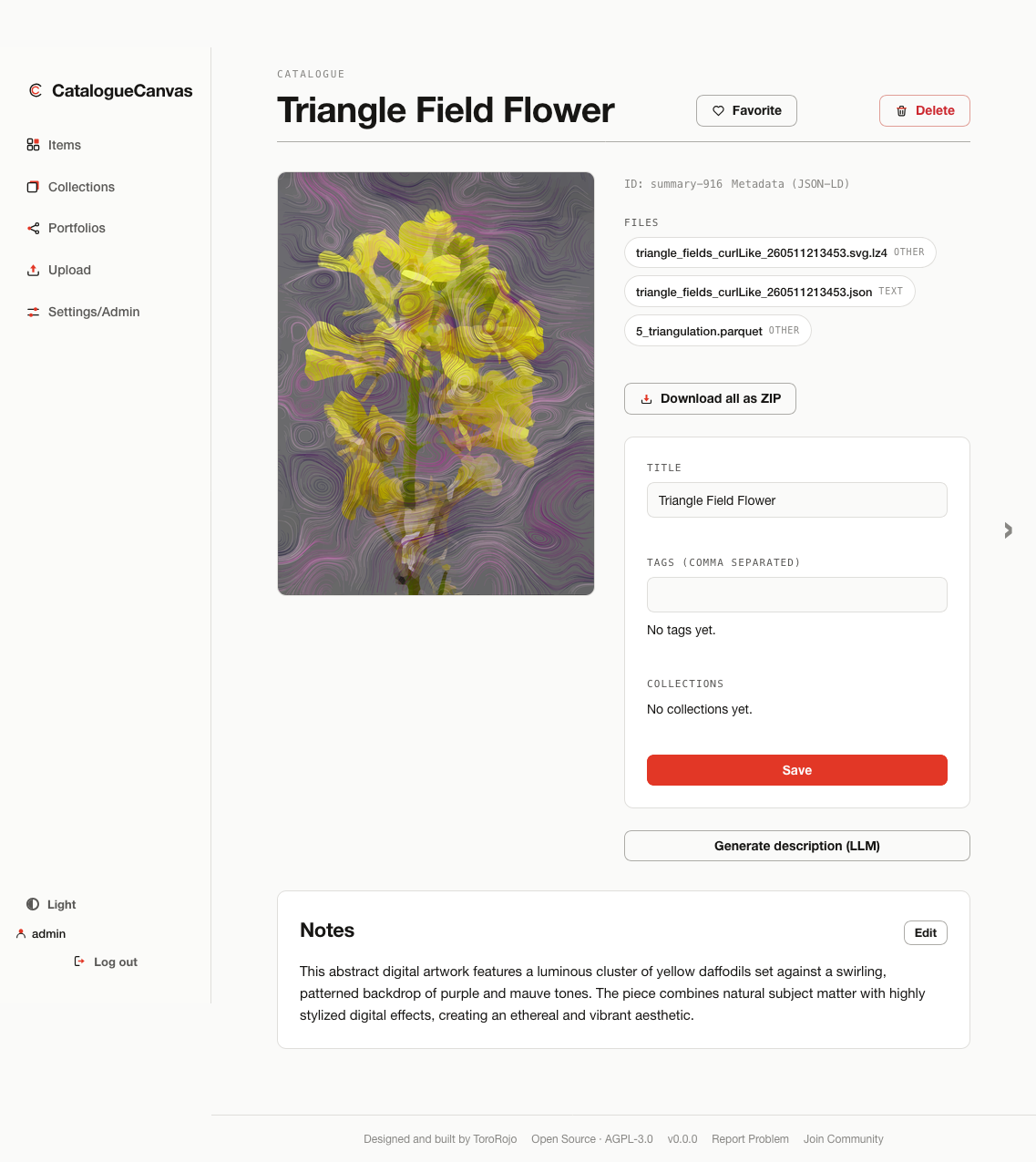
On an item's page you can:
- Edit the title and tags.
- Write notes in Markdown — they render formatted; switch to raw mode to edit the Markdown.
- Assign the item to one or more collections.
- Toggle Favourite (heart icon), if favourites are enabled.
- Generate an LLM description (if configured) and apply it to your notes.
- Navigate to the previous/next item with the ← / → arrow keys.
- Open linked files — images and text open inline; other types download.
- Download the item as a ZIP, or download all its files.
- Click the preview image to open a full-size lightbox. Click again to zoom to 1:1 and drag to pan. Arrow-key navigation between items is suspended while the lightbox is open.
Only an item's selected collections show as chips by default; click Edit to reveal the full collections checklist, which collapses back after saving.
Bulk actions
Select multiple items in the catalogue to:
- Add tags to all selected
- Clear notes on all selected
- Favourite / unfavourite in bulk
- Download all selected as one ZIP
- Add to / remove from collections
Searching the catalogue
The search bar reaches all of an item's metadata — not just its title, ID, and tags. Search is backed by a full-text index covering:
- the title,
- the description / note,
- tags, and
- the full contents of each item's uploaded
metadata.json/metadata.toml.
So an item can be found by any value buried in its metadata. Results are ranked by relevance, and prefix matching means partial words still match. Search runs on the server, so the whole catalogue is no longer sent to your browser to filter as you type.
Collections
- Create, rename, and describe collections.
- Set a cover item.
- Delete a collection (the system Favourites collection can't be edited or deleted).
- Each collection has a View items link that opens the Items page pre-filtered to it, with a clearable filter chip.
Portfolios (sharing your work)
- Create a portfolio with a title and description.
- Add and order the items it contains.
- Choose one of four presentation themes (see below).
- Choose a layout:
slide(a full-height deck, printable to PDF at 1920×1080) orscroll(a continuous one-page site, no page breaks, no print button). Both work with any theme; existing portfolios default toslide. - A slug is auto-generated (e.g.
quiet-amber-loom) — or set your own. - Mark it Public to expose it at
/p/<slug>. - Share the link — no login needed to view a public portfolio.
- Or export it as a static site, ready to upload to a web server1.
Note
Private portfolios return "not found" to anyone without admin access.
Thumbnails in a portfolio's "Works" index link directly to that item's section, in both the live deck and the static zip export.
Themes
Each public portfolio is dressed in one of four presentation themes, chosen per portfolio in the portfolio editor. A theme carries its own fixed colours and type, so a published portfolio looks the same regardless of the studio's own light/dark/accent appearance. Existing portfolios use Ledger by default.
-
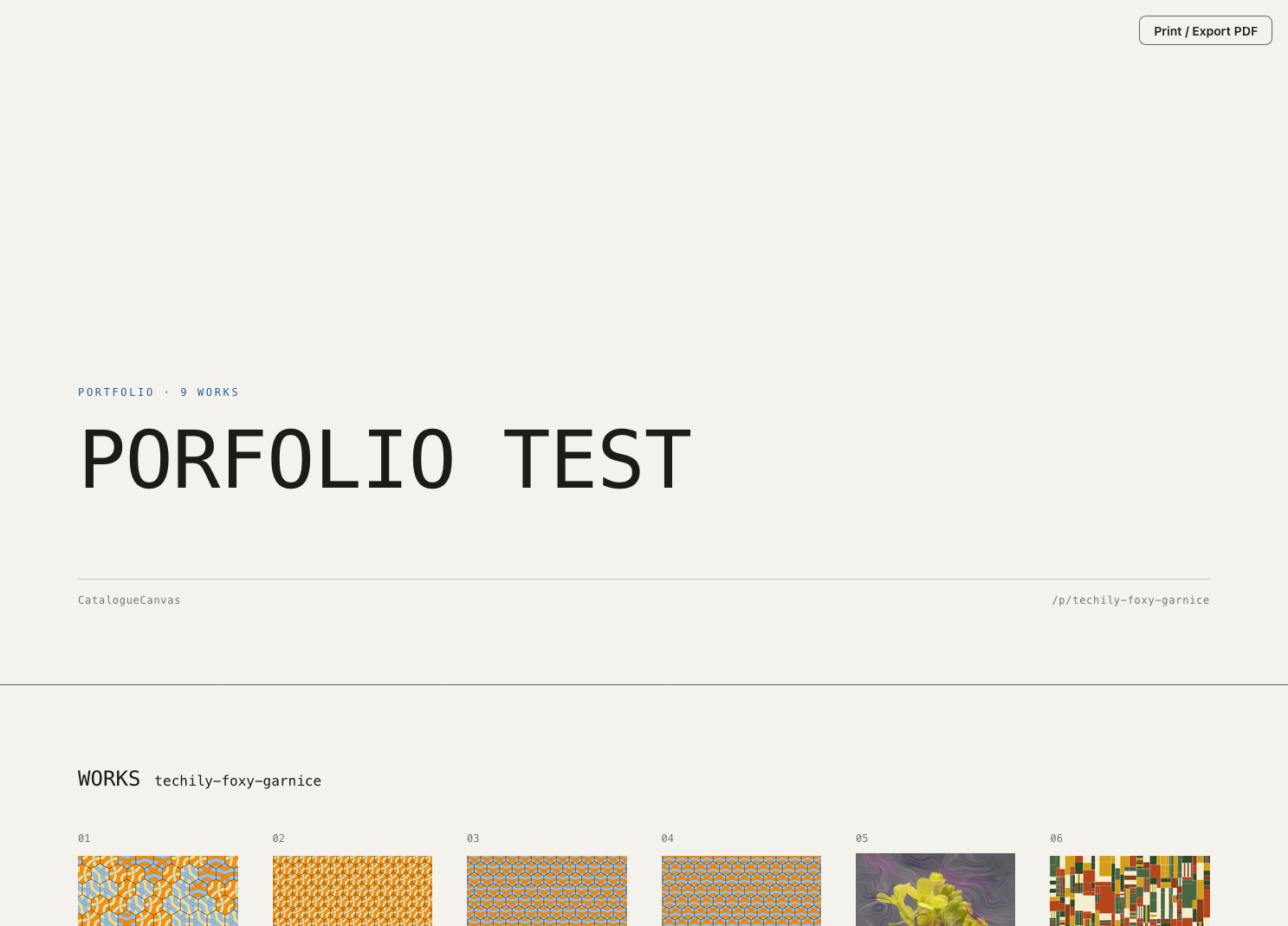
Ledger (default)
An archival specimen sheet.
-
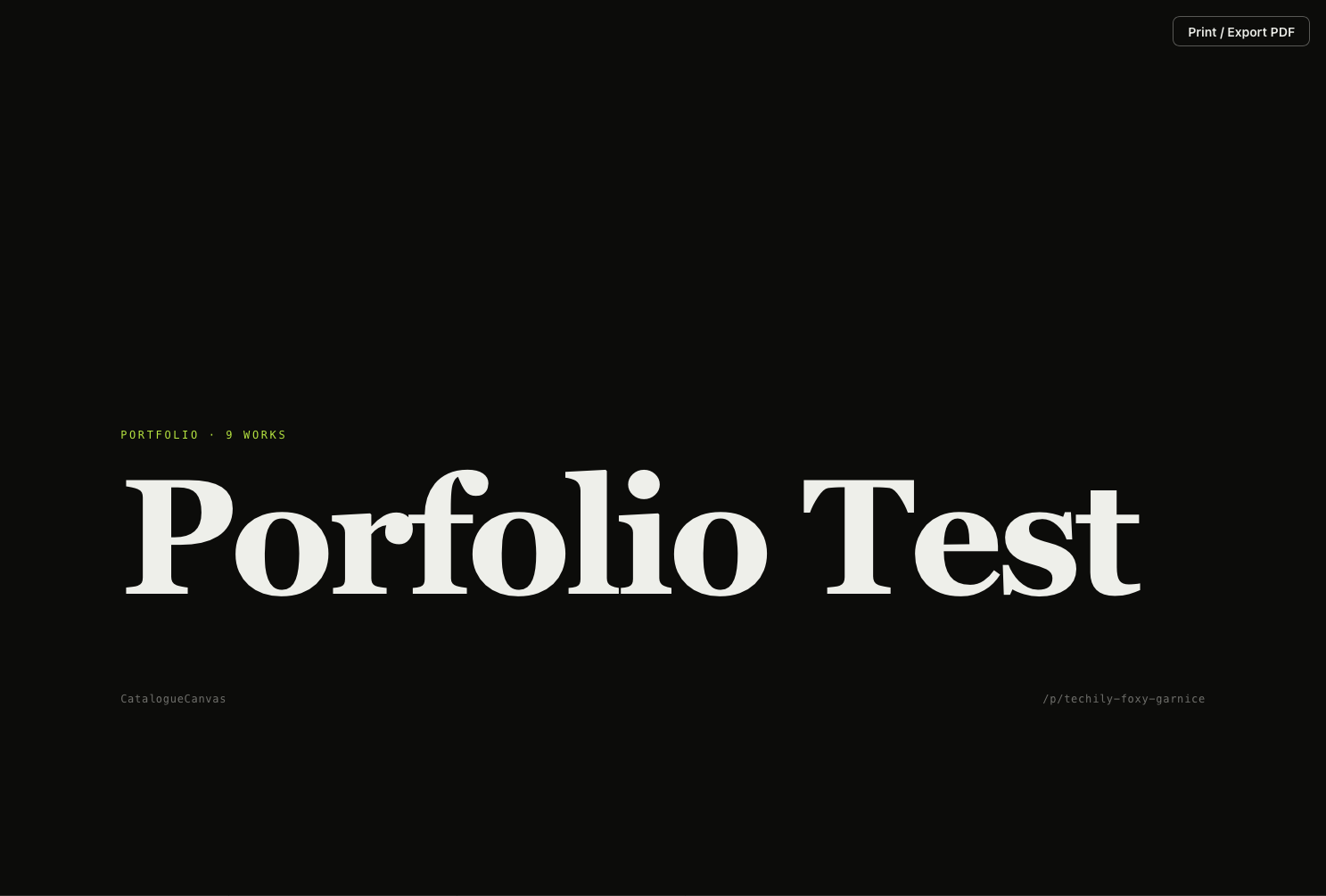
Kinetic
Dark, with an animated capabilities ribbon and a cursor-following thumbnail.
-
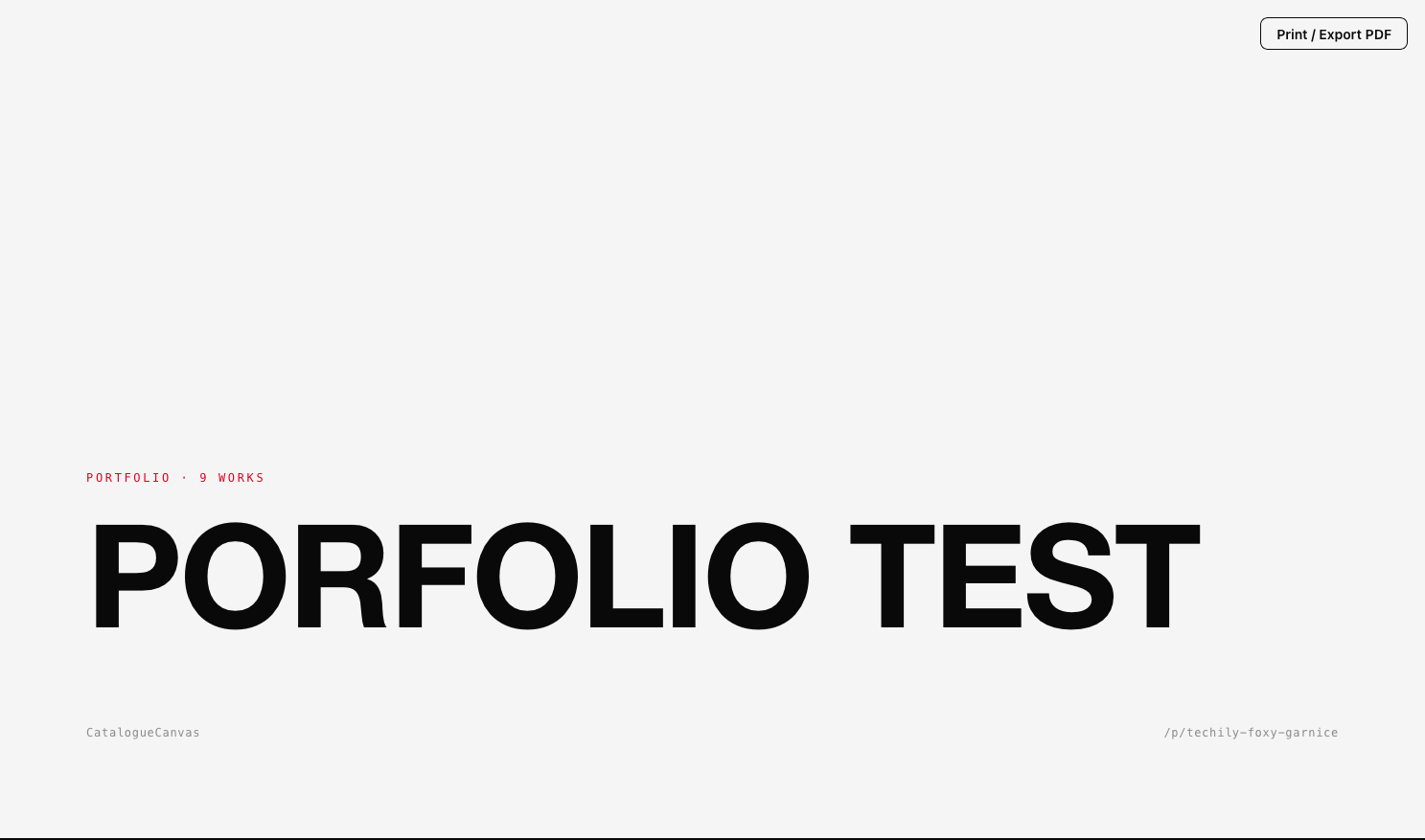
Brutalist
Stark uppercase with hard rules.
-
Riso
A risograph overprint look.
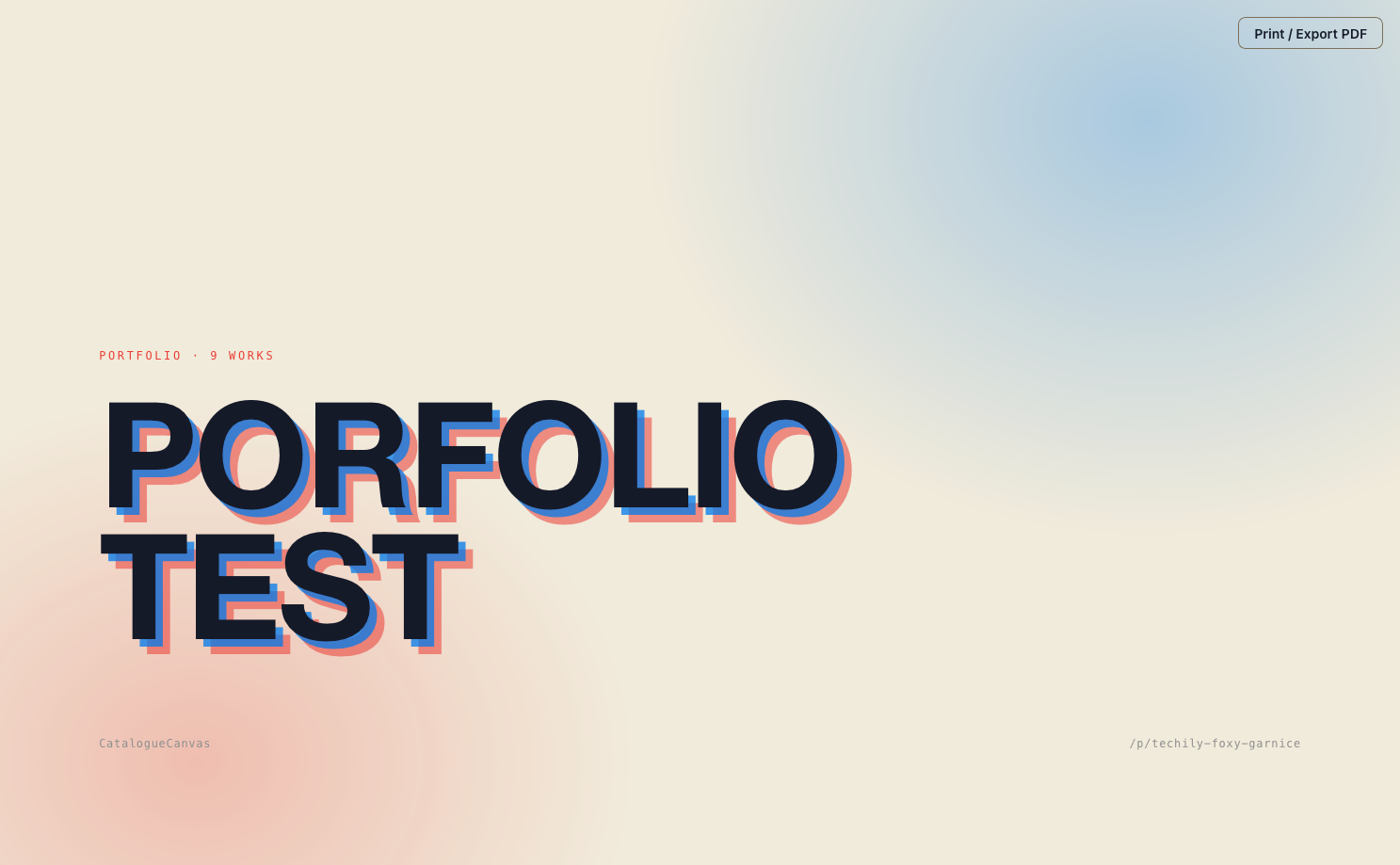
Export as a static site
A public portfolio can be downloaded as a self-contained website. The Export
static site (.zip) button (next to Preview deck) produces a folder with a
single index.html — with the chosen theme baked in — the WebP previews, and a
README.txt giving hosting steps.
- The export needs no server and uses only relative paths, so it can be hosted on any static host1.
- Only the WebP previews are bundled (the same images the public deck shows); source attachments are not included.
Two optional controls sit in the export panel, applied at download time:
- Image quality (40–95, default 85) — WebP compression for bundled previews. Reducing it shrinks file size at the cost of fidelity.
- Resize images for screen — caps the longest edge at a configurable maximum (480–4000 px, default 1280 px), aspect ratio preserved. Useful when you don't want recipients downloading several-megabyte previews.
Neither setting is saved to the portfolio. At the defaults (quality 85, resize off), the output is the same as before. A watermark, if set, is burnt in after resizing and stays proportional.
Restricting access with a share token
By default a public portfolio is open to anyone with the link. Enabling a share token from the portfolio editor restricts it: visitors without a valid token get a 404. Once a recipient visits with the correct token, a cookie is set and they can return without pasting it again.
From the editor you can toggle the token on or off, regenerate it (which invalidates the old one immediately), or copy the token-secured link directly.
Note
Share tokens apply to the live server only. Static exports (.zip downloads) are unlisted but do not support token protection.
Tips & FAQ
- Re-uploading the same ZIP? It's deduplicated by content hash — no duplicate is created.
- Several images in one ZIP? The preview is chosen by priority (PNG → JPEG → TIFF → SVG); a note explains which was used.
- Can't find an item? Search covers titles, notes, tags, and the contents of uploaded
metadata.json/metadata.toml— try a value from the item's metadata. - Keyboard: ← / → move between items on the item page.
-
Static web server — There are free services with free tier web server perfect for this role like codeberg, github, tiiny.host, cloudflare ↩↩