Catalog
Uploading items
Every portfolio starts with items — the individual works you catalogue in CatalogueCanvas. This guide covers adding files, the formats we support, and getting metadata right the first time.
Key Concept
A key concept in this software is that a piece of work being stored is together with their metadata. Those being the necesary files to reproduce that piece of work, a json files with settings, a pdf file, pictures...etc
Upload from the dashboard
The dashboard is the fastest way to add a handful of items. Drag files straight onto the dropzone, or browse from disc — CatalogueCanvas renders a preview plate for each one as it lands.
- Open the Catalog and click Upload in the top nav — or press ⌘ U from anywhere.
- Drag files onto the dropzone, or click Browse to pick them from disc.
- Wait for thumbnails to render. Large images and PDFs may take a moment to generate a cover plate.
- Click Save to catalog. New items land in your default collection, ready to tag.
LLM integration
CatalogueCanvas can describe an item's preview image with any OpenAI-compatible vision LLM — local (LM Studio, Ollama, llama.cpp) or hosted. Set the defaults once in Settings → LLM defaults, then generate a description from an item's page or in bulk across a selection.
- In Settings → LLM defaults, set the API URL and model. You can enter just the host and port (e.g.
http://host.docker.internal:1234) — the/v1/chat/completionspath is appended automatically. - Tune the output: item type, summary focus, number of bullet points, and max words per bullet.
- On an item, click Generate description (LLM), review the result, and apply it to your notes.
- These notes are searchable, and editable. Rendered in markdown format1
API keys are never stored
An API key can be supplied per request — for a single item or for a bulk run — and is used only for that request, never saved. Hosted endpoints that require a key work the same way as keyless local servers.
Running in Docker?
If CatalogueCanvas runs in a container and your LLM server runs on the host, point the API
URL at http://host.docker.internal:<port> — localhost inside the container refers to the
container itself. Reasoning from "thinking" models is stripped from results, and the request
timeout is configurable from Settings (default 90 seconds) to allow for slower local models.
For full configuration and troubleshooting, see Admin documentation → LLM / AI descriptions.
Supported file types
Most creative formats are catalogued natively. Anything we can't preview is still stored safely and shown with a generic plate.
| Kind | Extensions | Max size | Preview |
|---|---|---|---|
| Image | jpg · png · webp · tiff |
50 MB | Thumbnail auto-generated |
| Vector | svg · ai · eps |
25 MB | Rasterised at import |
| Document | pdf · docx |
25 MB | First page as cover plate |
| Other | zip · any |
200 MB | Stored as-is, generic plate |
Add metadata
Good metadata is what makes a catalogue searchable later. Each item carries a title, an
auto-assigned ID, free-form tags, and an optional note. You can edit any field inline
from the item view, or in bulk from the catalogue grid.
Tip
Keep tag casing consistent. Search is case-insensitive, but tag chips render exactly as
typed — Mono and mono will look like two different tags in a portfolio.
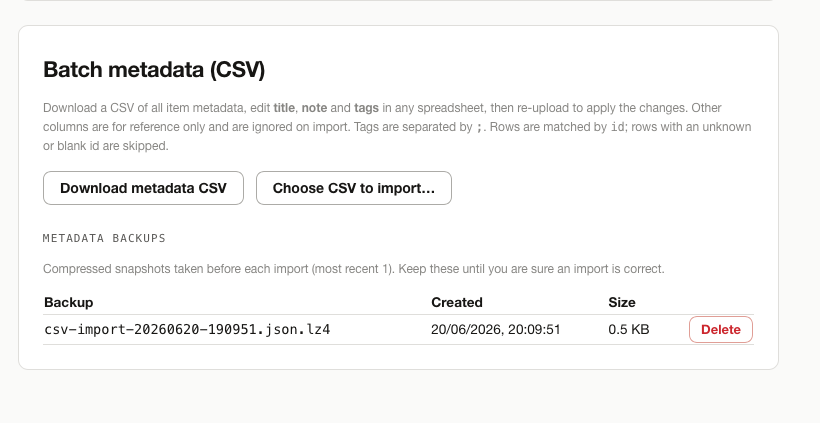
Import metadata in bulk
Cataloguing a large archive? Upload the files first, then attach metadata from a CSV. Match rows
to items by id; any column you omit is left untouched.
id,title,tags,note
CC-0184,"Aperture Study","print,mono","Test plate, archived"
CC-0185,"Grid No. 7","poster","Final, client-approved"
CC-0186,"Cyan Field","experiment,color",""
Then open Bulk actions → Import metadata and drop the file. A preview shows exactly which items will change before you commit.
⌘ U Upload · / Search catalogue · ⌘ Enter Save changes · Esc Close panel
Troubleshooting
Upload stalls or fails
If a file hangs at "processing", it usually exceeds the size limit for its type or uses an
unsupported codec. Re-export at a smaller size, or store it as a zip to keep it in the
catalogue without a preview.
Still stuck? Check your connection and retry — partial uploads resume automatically for up to 24 hours.
-
External Guide — basic markdown syntax ↩